![Logo-B2Chat-Consola.png]](https://help.b2chat.io/hs-fs/hubfs/Logo-B2Chat-Consola.png?height=40&name=Logo-B2Chat-Consola.png)
From the B2Chat console, you can start conversations with your contacts and open new sales possibilities with your customers.
Learn how to start a conversation by following these 👇 simple steps:
How to start a chat with a contact
Step 1: Enter B2Chat with your username and password🔐.
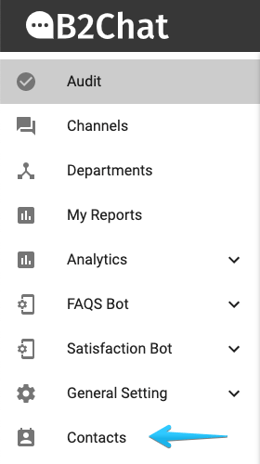
Step 2: Click on the contacts module, located at the bottom left-hand side of your screen.
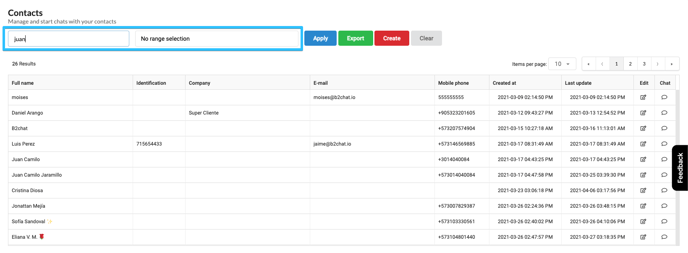
Step 3: Go to the "Search box" 🔎 located in the upper left-hand side of your screen, and type 👨💻: the name, the cell phone number, or the identification number for the contact with whom you wish to start a chat and click the blue button 🔵 : "Apply".
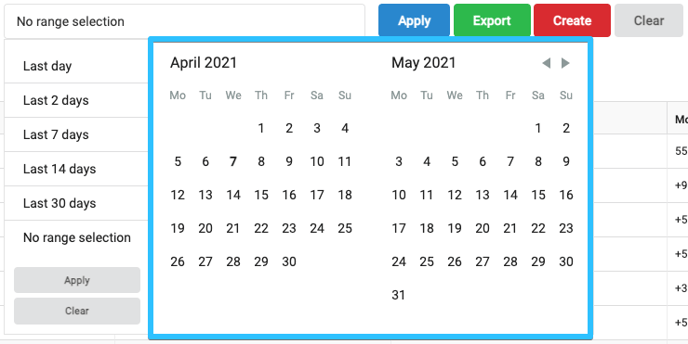
⚠️ Note: If you want to filter your search even further 🔎 you can click on the "Calendar" and select a range of specific dates 📆, this way the names that you will see on the list will correspond only to the contacts created on the dates you chose.
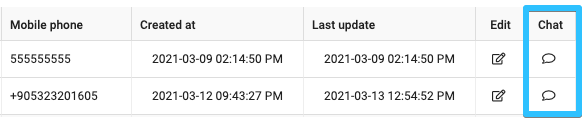
Step 4: You will see 👁️🗨️ a list with all the contacts that match your search, locate the contact with whom you wish to start the chat ✉️ , and go to the end of its row, there you will find a column called: "Chat" scroll down to your contact's row and click on the button: "Start Chat" 👉  .
.
Step 5: A message will appear on your screen where you will be asked to select one of your WhatsApp lines 🤔 to start the conversation, choose the one you prefer.
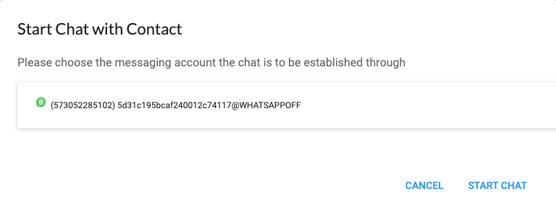
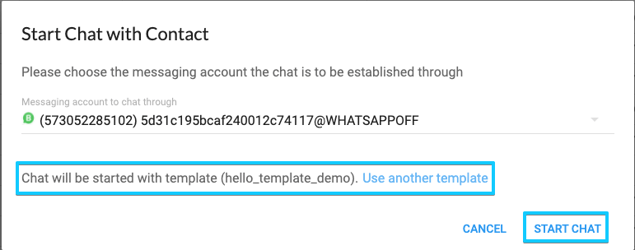
Step 6: After selecting your line, you must choose the template 👨💻 under which you want to send the message and finally click the blue button 🔵 : "Start Conversation".
⚠️ Note: Keep in mind that the WhatsApp API only allows you to start conversations with messages that have been previously approved ✔️ by the company, these messages are known as "Templates".
These templates are previously set up and when starting a new chat, one chosen by the administrator is selected by default 😎, but each agent can change it when they are about to start a new conversation.
If you wish to have more information about the templates or need help creating one, you can reach us at the email: support@b2chat.io .
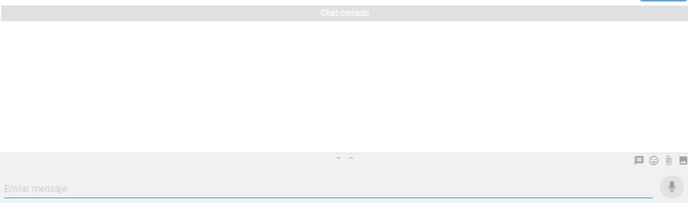
Step 7: Immediately after clicking the button 🔵: "Start conversation" the console will transfer you to the conversations in progress, there you will see your conversation history with the contact you have selected, however, you will not ❌ be able to see the template you just sent although your contact does ✔️ see it on their device.
👁️ Agent View 👇
👀 Contact view 👇
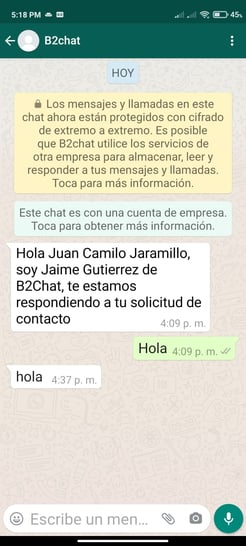
The conversation will only be reflected in the console when the contact has responded 👍 to the template, while that happens you will see in your ongoing conversations your contact's chat with the following 👇 icon that indicates you're waiting for a response.
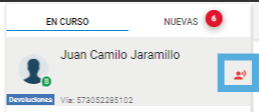
Once your contact responds to the template, you will have completed the process to start the conversation ✔️.
⚠️Note: To start conversations with your contacts, through a channel other than WhatsApp, you will need for your contact to have reached out to you ✍️ at least once through that channel, otherwise it will not be possible 😕.